How to Set Up Parental Controls on Your Child’s Device
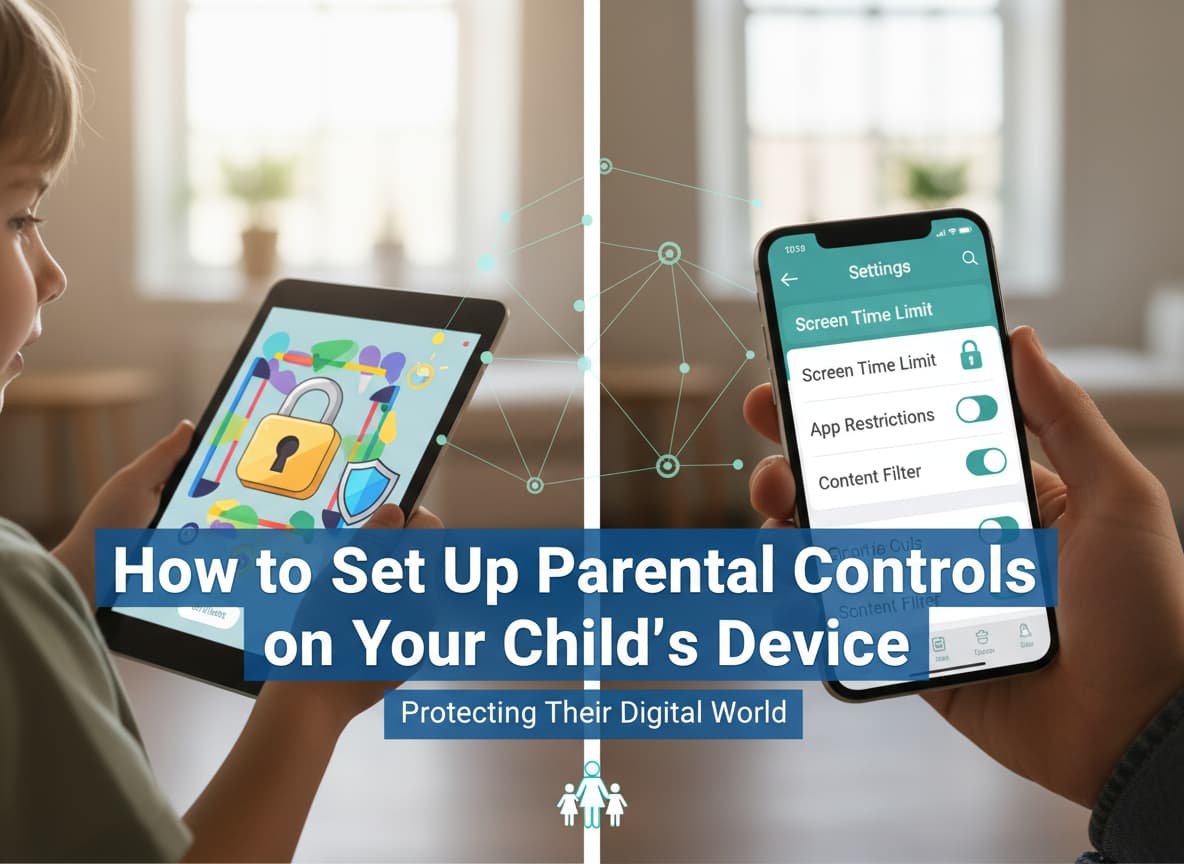
In 2025, keeping children safe online is more important than ever. Kids use tablets, phones, computers, and game consoles every day. While these devices are great for learning and fun, they can also show harmful content. Parental controls are tools that help you manage what your child sees and how long they use their screens.
This guide will show you exactly how to set up these safety features on the most popular devices. We will use simple words so you can follow along easily.
1. How to Secure iPhone and iPad (iOS)
Apple devices use a feature called Screen Time to handle parental controls. It is built right into the settings, so you do not need to download anything extra.
Turn On Screen Time
To start, grab your child’s device.
- Open the Settings app.
- Tap on Screen Time.
- Tap Turn On Screen Time and choose “This is My Child’s iPhone”.
Set a Passcode
You need a secret code so your child cannot change the settings back.
- Tap Lock Screen Time Settings.
- Enter a 4-digit code that only you know.
- You might be asked for your Apple ID. This helps if you forget the code later.
Block Bad Content
You can stop your child from seeing adult websites or downloading mature apps.
- Go to Content & Privacy Restrictions and turn it on.
- Tap Store Restrictions to stop them from installing new apps or buying things.
- Tap Web Content and choose Limit Adult Websites to block bad sites automatically.
2. How to Secure Android Phones and Tablets
For Android devices (like Samsung or Pixel), Google provides a free app called Family Link. It lets you control your child’s phone from your own phone.
Get the App
- Download the Google Family Link app on your phone (the parent’s phone).
- Download the app on your child’s device as well.
Link the Accounts
- Open the app on your phone and follow the steps to create a Google account for your child if they don’t have one.
- The app will give you a code to connect the two devices.
- Once connected, you can set a bedtime, see where they are, and approve any app they want to download.
Control Google Play Store
You can also set rules directly on their device for the app store.
- Open the Google Play app on your child’s device.
- Tap the profile picture at the top right and go to Settings.
- Tap Family and then Parental Controls.
- Turn it on and create a PIN. You can then choose the maximum age rating for apps, games, and movies (like “Teen” or “Everyone”).
3. Safety Settings for Computers
Computers often have open access to the whole internet, so securing them is very important.
Windows 11 PCs
Microsoft has a tool called Microsoft Family Safety.
- Create a Child Account: Go to Settings > Accounts > Family & other users. Click Add a family member and create an account for your child.
- Manage Settings: Go to the Microsoft Family Safety website or use the app on your phone. You can set screen time limits for the PC and block inappropriate websites on the Microsoft Edge browser.
- Activity Reports: You can turn on weekly reports to see what websites your child visited and what games they played.
Mac Computers (macOS)
Macs use Screen Time just like iPhones.
- Click the Apple Menu (the apple icon) and go to System Settings.
- Click Screen Time in the sidebar.
- Choose your child’s name from the list.
- Click Content & Privacy to block adult websites and limit app downloads.
- You can also use Downtime to lock the computer at bedtime automatically.
4. Parental Controls for Gaming Consoles
Video games are fun, but online chat and spending money can be dangerous. Here is how to fix that on the main consoles.
PlayStation 5 (PS5)
- Go to Settings > Family and Parental Controls > Family Management.
- Create a user profile for your child.
- Set a Monthly Spending Limit to $0 so they cannot buy games without asking.
- Adjust Communication settings to “Restrict” so strangers cannot send them messages.
Xbox Series X and S
The easiest way to manage Xbox is with the Xbox Family Settings app on your phone.
- Download the app and sign in with your Microsoft account.
- Add your child’s account.
- You can block multiplayer games or allow only “friends” to chat.
- You can also set strict time limits. For example, you can allow 2 hours of play on Saturdays but only 1 hour on school nights.
Nintendo Switch
Nintendo also has a great mobile app called Nintendo Switch Parental Controls.
- Install the app on your phone and link it to the Switch console.
- You can set a Play-Time Limit. When the time is up, an alarm will ring on the screen. You can even set the game to turn off automatically.
- You can also pick a “Restriction Level” based on age (like “Child” or “Teen”) to hide games that are too violent.
5. Extra Protection: Routers and Apps
Sometimes kids find ways around the rules. For extra safety, you can control the internet itself.
Router Controls
Your Wi-Fi router is the box that gives you internet. In 2025, many routers have built-in parental controls.
- Log in to your router’s admin page (usually by typing numbers like 192.168.1.1 into a browser).
- Look for Parental Controls or Access Control.
- You can block specific websites (like gambling or adult sites) for the whole house.
- You can also “pause” the internet at dinner time.
Third-Party Apps
If you want one app to control everything, you can pay for a service. In 2025, some of the best apps are:
- Qustodio: Great for detailed reports on what your child does online.
- Bark: Good for monitoring messages on social media for bullying.
- Aura: Useful for protecting your family from identity theft and bad websites.
Conclusion
Setting up parental controls might seem hard, but it is the best way to keep your child safe. You do not have to be a tech expert. Start with one device, like their phone, and then move to the others.
Remember, no tool is perfect. The best protection is talking to your child. Explain why you are setting these rules. Tell them it is to keep them safe, not just to stop their fun. By combining these settings with open conversation, you can build a healthy and safe digital life for your family.













Post Comment