Laptop Buying Guide: How to Choose the Right Specs
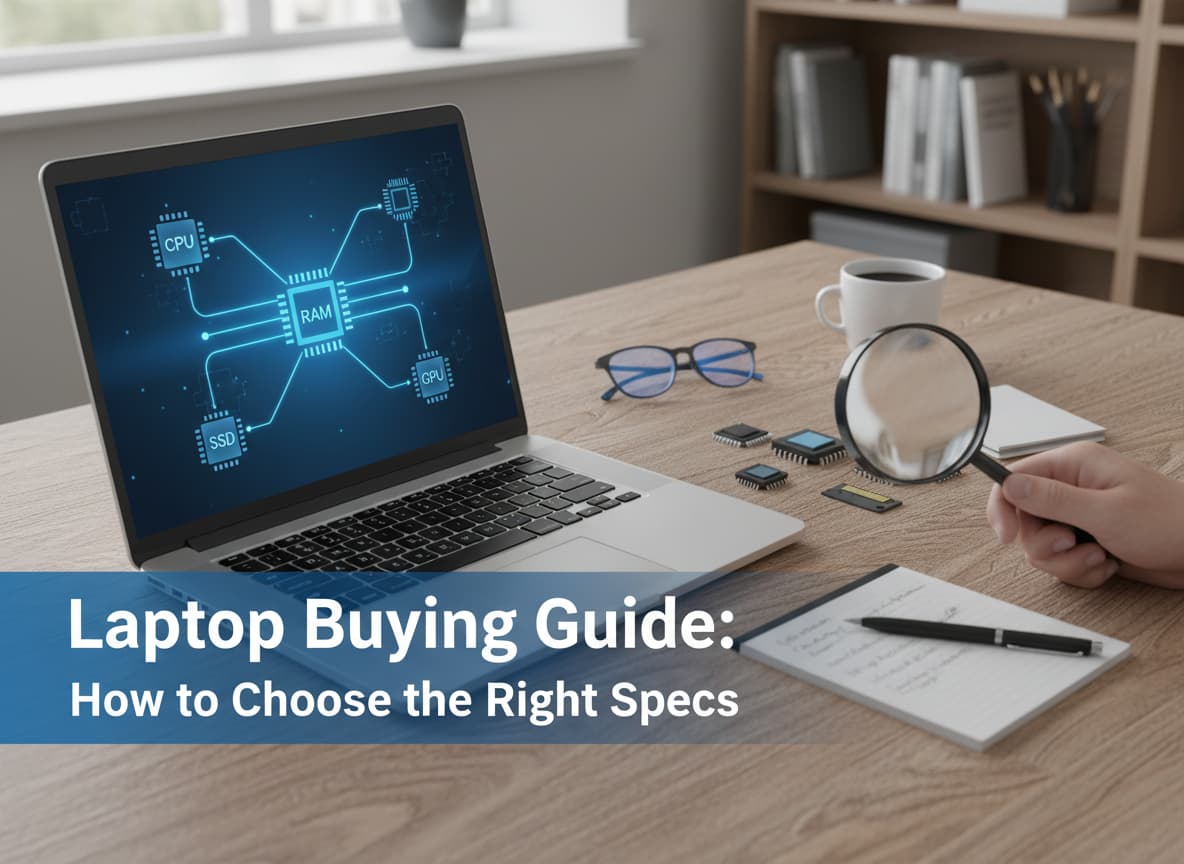
Buying a laptop in 2025 is different from just a few years ago. We now have “AI PCs,” chips that last for 20 hours on a single charge, and screens that look better than your TV. But with all these new choices—like NPUs, OLEDs, and Unified Memory—it is easy to feel confused.
This guide will explain everything in simple English. You do not need to be a computer expert to find the perfect laptop. We will break down the technical words so you can spend your money wisely.
Step 1: Pick Your Operating System (OS)
Before you look at speed or storage, you must decide which “world” you want to live in. There are three main choices.
Windows 11 (The “Do Everything” Choice)
Windows is the most popular system. It runs almost every app and game.
- Best for: Gamers, office workers, and students who need specific software (like engineering apps).
- New in 2025: Look for “Copilot+ PCs.” These are special Windows laptops with AI brains that are very fast and have amazing battery life.
macOS (The Creative Choice)
MacBooks are made by Apple. They are famous for being easy to use and lasting a long time.
- Best for: Video editors, designers, iPhone users, and students who want a battery that lasts all day.
- Note: You cannot play many popular games on a Mac compared to Windows.
ChromeOS (The Simple & Cheap Choice)
Chromebooks run on Google’s system. They are mostly for using the internet (Chrome browser).
- Best for: Younger students, people on a tight budget, and anyone who only does simple tasks like email and YouTube.
- Warning: They cannot run professional software like Photoshop or big PC games.
Step 2: The Processor (The Brain)
The Processor, or CPU, is the brain of the laptop. It controls how fast your computer “thinks.”
Intel
- Core Ultra 5: Great for normal work, school, and watching movies.
- Core Ultra 7 / 9: Very powerful. Good for video editing and heavy gaming.
- Intel Core (Series 1): A budget option for basic laptops.
AMD
- Ryzen 5: excellent value. Fast enough for most people.
- Ryzen 7 / 9: High performance for gaming and creating content.
- Ryzen AI 300 Series: The newest chips with built-in AI tools.
Apple (Mac Only)
- M2 / M3: Perfect for students and writers. Very fast and efficient.
- M3 Pro / Max (or M4): Only needed for professional video editors or 3D designers.
Qualcomm (Snapdragon)
- Snapdragon X Elite: A new type of chip for Windows. It is very quiet and has incredible battery life (often 15-20 hours), similar to a MacBook.
Simple Rule: If you are not sure, get an Intel Core Ultra 5 or AMD Ryzen 5. It is the “sweet spot” for price and speed.
Step 3: RAM (Short-Term Memory)
RAM is where your laptop keeps the apps you are using right now. If you have too little RAM, your laptop will freeze when you open many tabs.
- 8GB: The absolute minimum. Okay for Chromebooks or very basic use, but not recommended for Windows in 2025.
- 16GB: The new standard. Buy this if you can. It lets you keep many apps open without slowing down.
- 32GB+: Only for professionals who edit 4K video, programmers, or hardcore gamers.
Advice: You cannot usually add more RAM later, so buy 16GB now to be safe for the future.
Step 4: Storage (Long-Term Memory)
Storage (SSD) is where you save your photos, games, and files.
- 256GB: This fills up very fast. You will need to delete files often.
- 512GB: Recommended. Enough space for Windows, some games, and lots of photos.
- 1TB (1000GB): Great if you edit videos or play many large games.
Tip: Always make sure the laptop has an SSD (Solid State Drive). Never buy a laptop with an “HDD” (Hard Disk Drive)—they are too slow for 2025.
Step 5: The Screen (Display)
You look at the screen all day, so do not choose a bad one.
Panel Type
- IPS: The standard good screen. Colors look nice and you can see from the side.
- OLED: The best quality. Colors are vibrant and blacks are perfect. Great for watching movies, but costs more.
- TN: Old technology. Looks washed out. Avoid this unless the laptop is extremely cheap.
Resolution (Sharpness)
- FHD (1920 x 1080): Good enough for 13-15 inch laptops.
- WUXGA (1920 x 1200): Better because it is slightly taller, giving you more space to read websites.
Step 6: Graphics Card (GPU)
Do you need a separate graphics card?
- Integrated Graphics: Built into the processor. Good for Netflix, office work, and simple games (like Minecraft). Most people only need this.
- Dedicated Graphics (NVIDIA RTX 4050/4060): A separate powerful chip. You need this if you want to play modern games (like Call of Duty) or do 3D design.
Quick Budget Guide: What You Get for Your Money
| Budget | What to Expect in 2025 | Best For |
| Under $500 | Chromebooks or basic Windows laptops. Plastic body, 8GB RAM, acceptable screen. | Kids, basic schoolwork, web browsing. |
| $600 – $1,000 | Thin metal designs, good battery (10+ hours), 16GB RAM, fast processor (Core Ultra 5 / M2). | College students, office work, home use. |
| $1,000 – $1,500 | Premium screens (OLED), very fast speeds, dedicated graphics for gaming, all-day battery. | Gamers, creators, business pros. |
| Over $1,500 | The best of everything. Extreme power (RTX 4070+), 4K screens, luxury materials. | Professional editors, hardcore gamers. |
Summary Checklist
If you want a laptop that will last for 3-4 years, look for these “Gold Standard” specs:
- CPU: Intel Core Ultra 5 / AMD Ryzen 5 / Apple M3
- RAM: 16GB
- Storage: 512GB SSD
- Screen: IPS type, 1920 x 1200 resolution
- Battery: Look for “10+ hours” in real reviews (not just what the box says).
By following this guide, you can ignore the confusing marketing words and pick the laptop that actually fits your life.














Post Comment